Connect the Database
Add a database so the app can remember conversations.
Right now the app runs, but it does not have real storage yet. In this step, you add Aurora through Vercel, then ask the agent to save and load messages.
Add the database
Open the Vercel project.
Go to vercel.com, then open the project you created during
vercel dev.Open Integrations.
In the project sidebar, click Integrations.
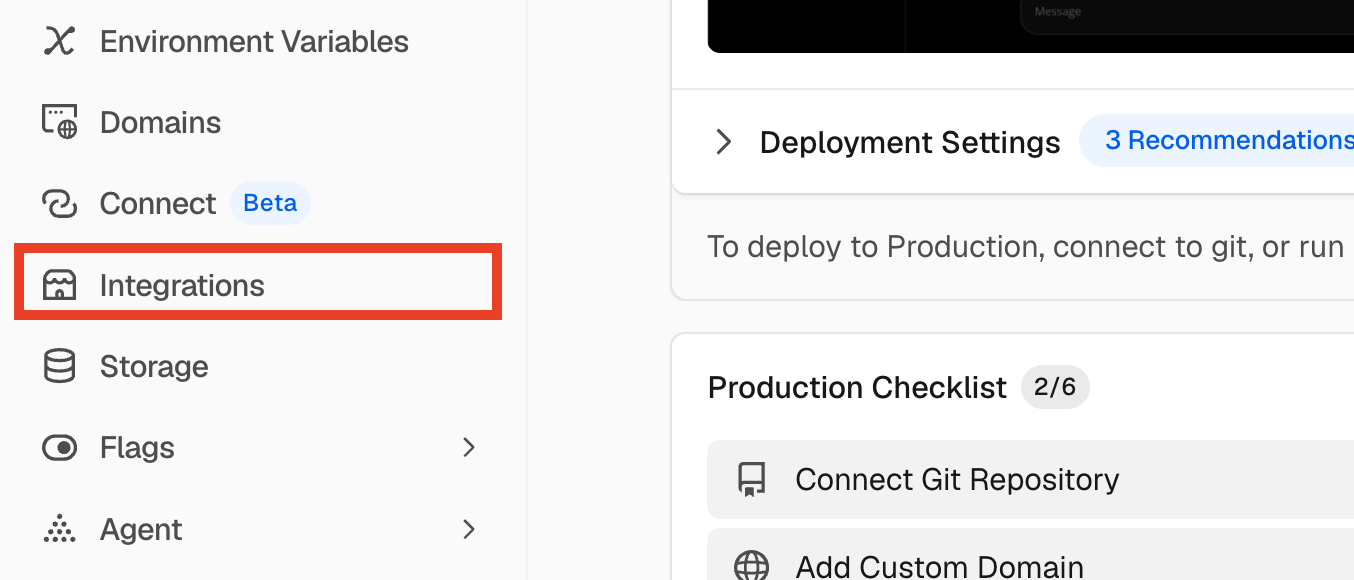
Choose the AWS integration.
Click AWS.
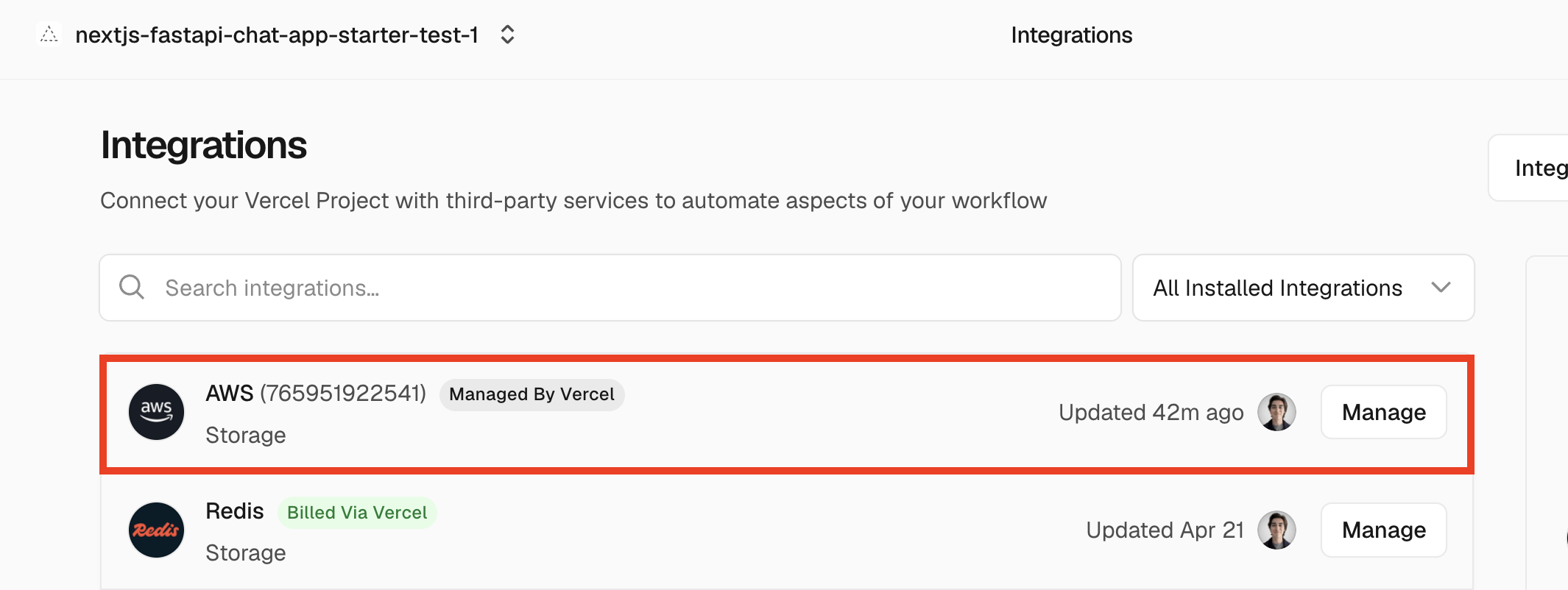
Create Aurora PostgreSQL.
Click Aurora PostgreSQL, then go through the AWS auth steps.
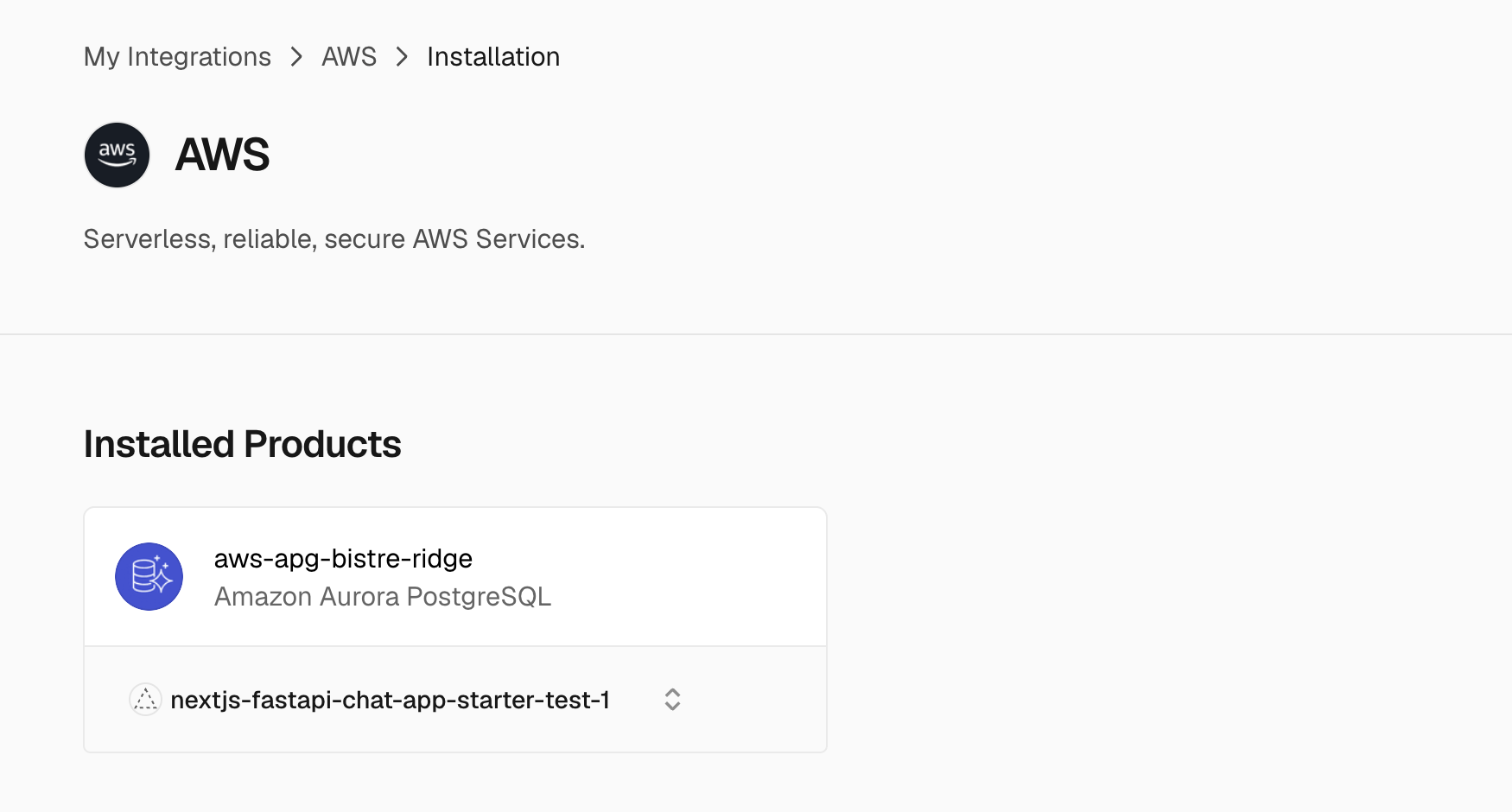
Connect the current project.
When Vercel asks which project to connect, choose your current workshop project from the dropdown.
Pull the environment variables.
In the Devbox terminal, run this from the repo root:
vercel env pull
Previous CLI flow
Find the AWS integration.
Run this in the terminal where
vercel devis running, or in another Devbox terminal from the repo root:vercel integration discover awsProvision Aurora.
vercel integration add aws/aws-apgThis opens an auth flow. Follow it to let Vercel create the database for your project.
When the database is created, note its name. Most people will only have one Aurora database, but writing the name down makes the AWS Console step easier later.
Use the database
Ask the agent to use the database.
Paste this into your agent:
PromptImplement real database-backed conversation storage now in the backend FastAPI app. Use the Aurora database from the Vercel integration. Replace any placeholder, mock, in-memory, or static session data with FastAPI routes that save conversations and messages to Aurora, then load previous conversations from Aurora for the frontend when the app starts.
Try it in the app
Open your preview.
Go back to the browser tab with your Devbox port 3000 preview.
Send a few messages.
Send two or three chat messages.
Check that they stay saved.
Refresh the page. Your messages should still be there.
Check the database in AWS
Use this step to see the saved rows directly in AWS.
Open your Vercel project.
Go to vercel.com, then open the project you created during
vercel dev.Open the Aurora integration.
In the project sidebar, select Integrations.
Select Aurora, then select the database that was created for this workshop.
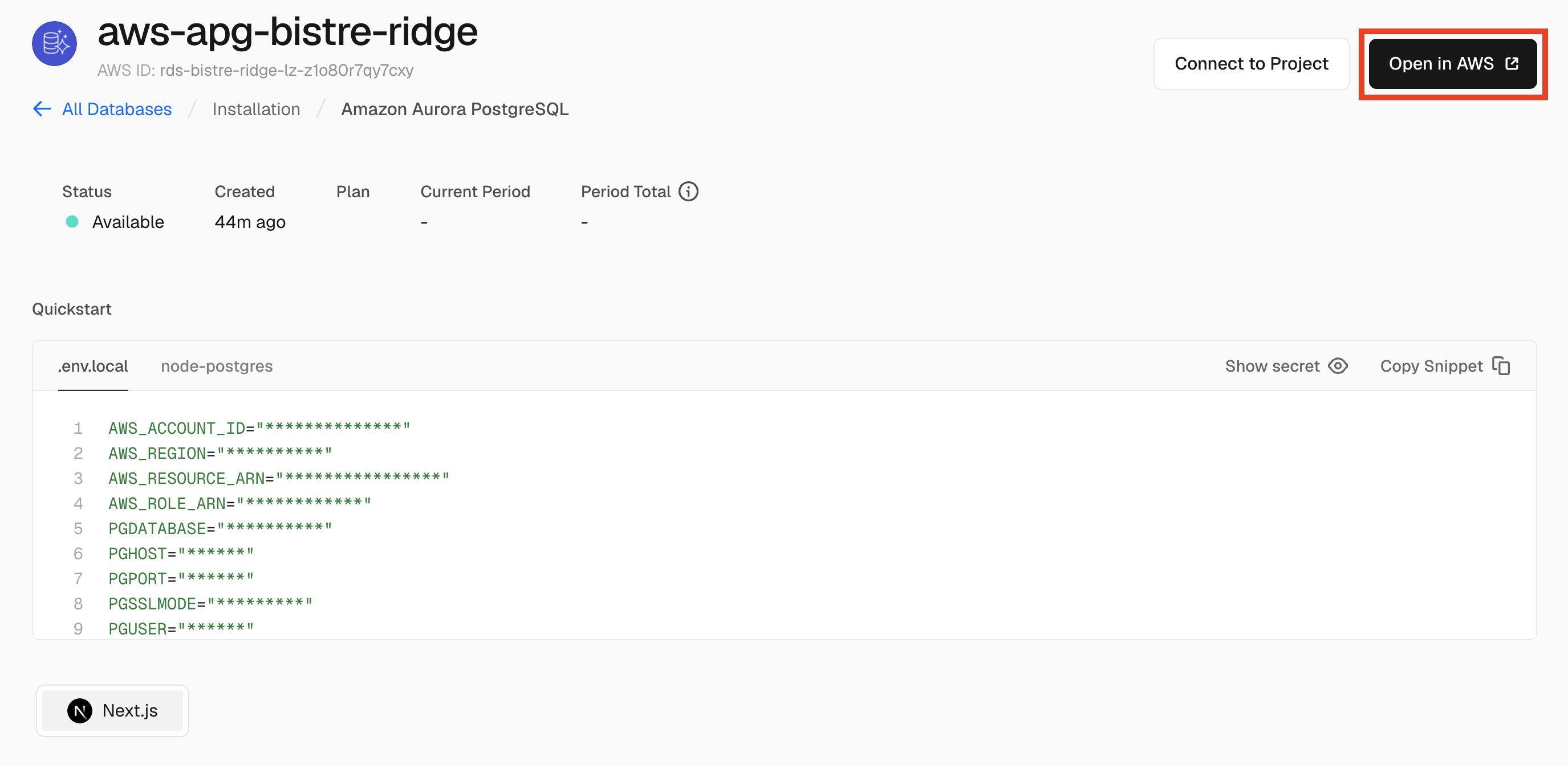
Open AWS Console.
Click the black button that opens the database in AWS Console.
Open the database shell.
In AWS Console, open CloudShell for the database. It will connect to the database for you.
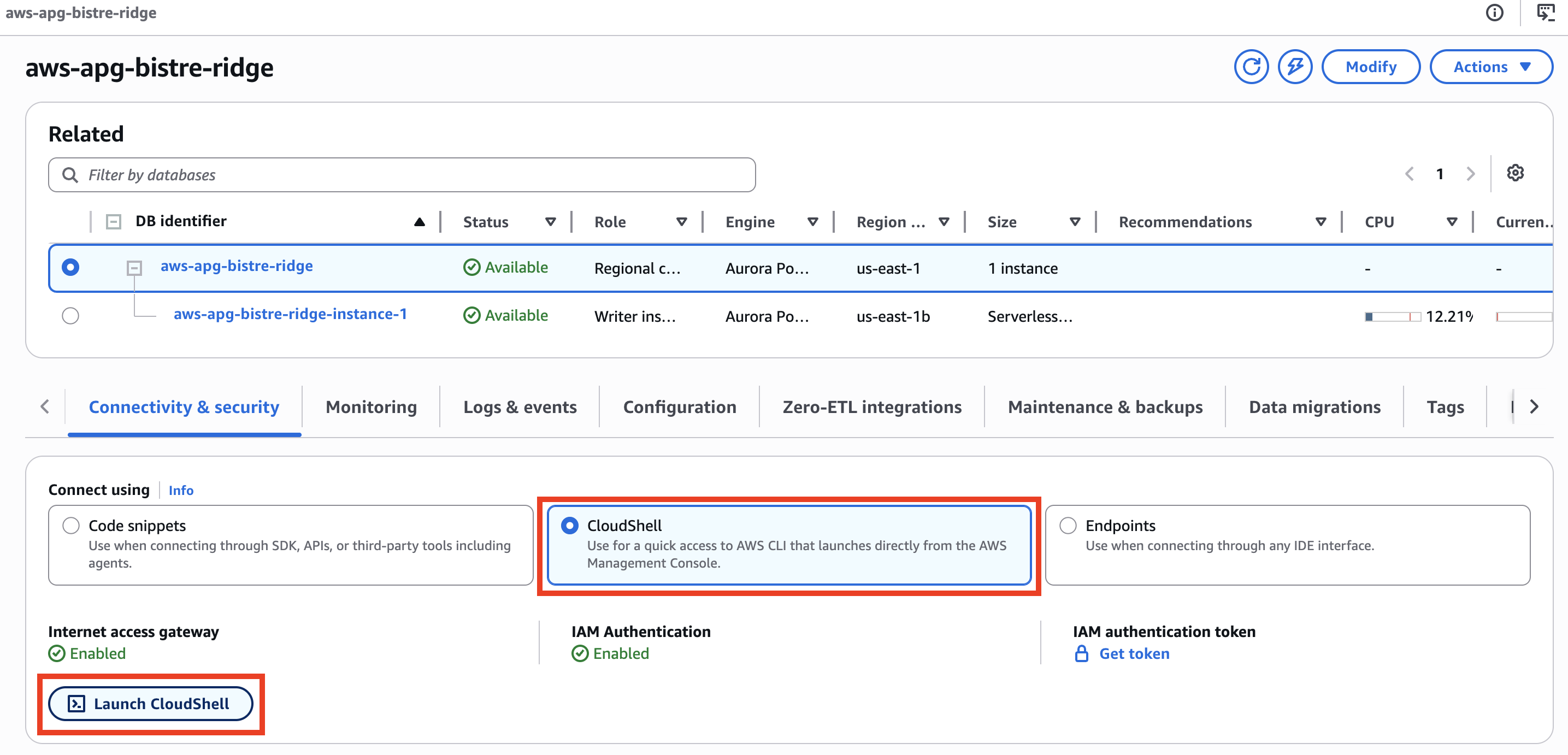
Run a query.
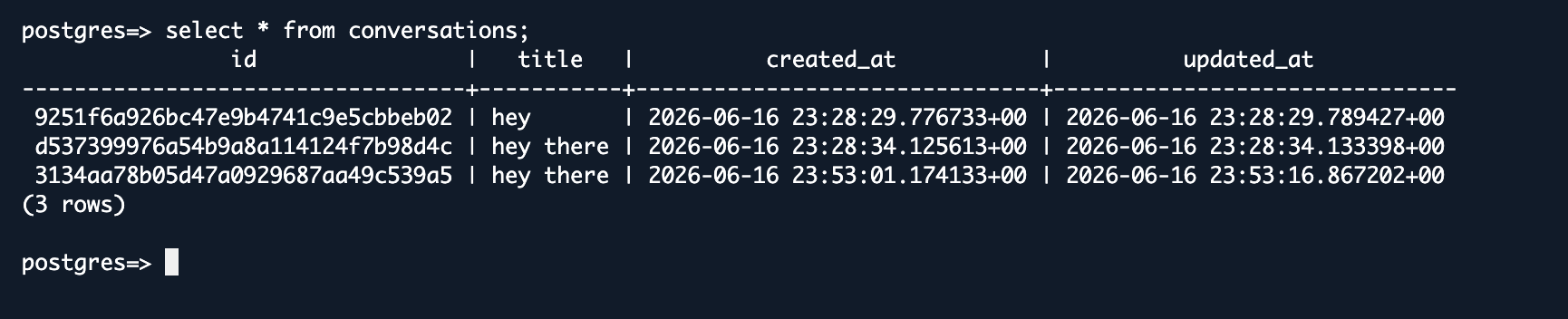
Run:
select * from conversations;You should see rows for the conversations you created in the app.
You are ready when
- Aurora is connected to your Vercel project.
- Refreshing the preview keeps your messages.
- The AWS Console query shows rows in
conversations.